
You are using an out of date browser. It may not display this or other websites correctly.
You should upgrade or use an alternative browser.
You should upgrade or use an alternative browser.
how to convert query to vb code
- Thread starter sandanet
- Start date
 , please kindly look at the attached database.
you shouldnt, queries are better.
but,
in the query, click the design,SQL button
copy sql
put in vb code
sql = "select * from table"
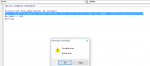
thank you for replay, when i do that i get error when i copy this sql code
Code:
sql = "SELECT Format(Int((108120-[Value])/3600),"00") AS Total FROM tbl1 WHERE (((tbl1.Property)="100"));"i don't know why??
Attachments

isladogs
Access MVP / VIP
- Local time
- Today, 02:16
- Joined
- Jan 14, 2017
- Messages
- 19,537
You can't use double quotes (") in SQL statements.
You either need to use single quotes (') or double double quotes ("")
So for example, your query should probably be
I say probably as I haven't tested the section Format .... AS.
I would also recommend my SQL to VBA & back again utility as a way of learning how to do such conversions. Its easy & it works!
To convert query SQL to VBA, do the following:
a) Change your query from design view to SQL view. Copy it to the clipboard
b) Open the utility. Click the SQL tab and paste in the query SQL
c) Click the VBA tab and the converted VBA code will be shown.
You can then copy this into a VBA procedure
You either need to use single quotes (') or double double quotes ("")
So for example, your query should probably be
Code:
sql = "SELECT Format(Int((108120-[Value])/3600),'00') AS Total FROM tbl1 WHERE (((tbl1.Property)='100'));"I say probably as I haven't tested the section Format .... AS.
I would also recommend my SQL to VBA & back again utility as a way of learning how to do such conversions. Its easy & it works!
To convert query SQL to VBA, do the following:
a) Change your query from design view to SQL view. Copy it to the clipboard
b) Open the utility. Click the SQL tab and paste in the query SQL
c) Click the VBA tab and the converted VBA code will be shown.
You can then copy this into a VBA procedure
You can't use double quotes (") in SQL statements.
You either need to use single quotes (') or double double quotes ("")
So for example, your query should probably be
Code:sql = "SELECT Format(Int((108120-[Value])/3600),'00') AS Total FROM tbl1 WHERE (((tbl1.Property)='100'));"
I say probably as I haven't tested the section Format .... AS.
I would also recommend my SQL to VBA & back again utility as a way of learning how to do such conversions. Its easy & it works!
To convert query SQL to VBA, do the following:
a) Change your query from design view to SQL view. Copy it to the clipboard
b) Open the utility. Click the SQL tab and paste in the query SQL
c) Click the VBA tab and the converted VBA code will be shown.
You can then copy this into a VBA procedure
i did that and i got this
Code:
DoCmd.RunSQL " SELECT Format(Int((108120-[Value])/3600),""00"") AS Total "  & _
" FROM tbl1 "  & _
" WHERE (((tbl1.Property)=""100""));"isladogs
Access MVP / VIP
- Local time
- Today, 02:16
- Joined
- Jan 14, 2017
- Messages
- 19,537
i did that and i got thisnow how can i show the result on the form in the unbound textbox ?Code:DoCmd.RunSQL " SELECT Format(Int((108120-[Value])/3600),""00"") AS Total " & _ " FROM tbl1 " & _ " WHERE (((tbl1.Property)=""100""));"
What you asked for was VBA code to enter into a procedure.
That's what you've got above
If you want to enter the result of a query into a form textbox, you wouldn't do that.
Instead do one of the following:
a) create a form with your query q1 as the record source.
Then add a BOUND textbox with control source = Total field from query
OR
b) create a textbox on your form and set the control source to:
Code:
=DLookUp("Total","q1")c) create an UNBOUND textbox - I'll call it Text0
Then add code to your form_load event
Code:
Private Sub Form_Load()

    Me.Text0.Value = DLookup("Total", "q1")

End Sub
OR
d) create a label (Label0) and set its caption in the Form_Load event
Code:
Private Sub Form_Load()

    Me.Label0.Caption = DLookup("Total", "q1")

End Sub
I've done all 4 on a form so you can compare & decide which you want to use.
All work but there is a noticeable delay using method b)
Attachments
isladogs
Access MVP / VIP
- Local time
- Today, 02:16
- Joined
- Jan 14, 2017
- Messages
- 19,537
Hi Ranman / Tony
If you look back to post #8, I also used single quotes:
However, when I created my utility based on a similar idea by Allen Browne, I decided to retain his convention of using double double quotes (rather than convert to single quotes) as it solved various issues during conversion.
Harder to read but it always works.
It can get even more complex...
a) triple double quotes (""") at the end of a text string
b) use quadruple double quotes ("""") where you need it to be read as ""
Yes you could use Chr(34) but in my view that's even harder to read...
Have a look at this article on Allen's site: Quotation marks within quotes
I'm also increasingly using Phillip's site as an excellent reference.
See: http://codekabinett.com/index.php?Lang=2
Unlike Allen he is still very much actively working in Access.
He is also a member of this site with the user name sonic8
If you look back to post #8, I also used single quotes:
Code:
sql = "SELECT Format(Int((108120-[Value])/3600),'00') AS Total FROM tbl1 WHERE (((tbl1.Property)='100'));"However, when I created my utility based on a similar idea by Allen Browne, I decided to retain his convention of using double double quotes (rather than convert to single quotes) as it solved various issues during conversion.
Harder to read but it always works.
It can get even more complex...
a) triple double quotes (""") at the end of a text string
Code:
=DLookup("City", "Customers", "CompanyName = ""MendipDataSystems""")
Code:
=DLookup("City", "Customers", "CompanyName = """ & [CompanyName] & """")Yes you could use Chr(34) but in my view that's even harder to read...
Have a look at this article on Allen's site: Quotation marks within quotes
I'm also increasingly using Phillip's site as an excellent reference.
See: http://codekabinett.com/index.php?Lang=2
Unlike Allen he is still very much actively working in Access.
He is also a member of this site with the user name sonic8
isladogs
Access MVP / VIP
- Local time
- Today, 02:16
- Joined
- Jan 14, 2017
- Messages
- 19,537
Hi Tony
I often do the same as you - building up lengthy SQL in sections. For example
As well as being easier to read/edit, it also has the advantage of solving the
'too many line breaks' issue
I often do the same as you - building up lengthy SQL in sections. For example
Code:
strSQL = strSELECT & strWHERE & strORDERBY & ";"As well as being easier to read/edit, it also has the advantage of solving the
'too many line breaks' issue
isladogs
Access MVP / VIP
- Local time
- Today, 02:16
- Joined
- Jan 14, 2017
- Messages
- 19,537
Talking of templates, as you may know I've been creating automated function for transforming JSON files into Access tables.
To do this I use a text file as a template, read that into Access then modify individual sections using a special script which is generated automatically for each file
Hard to explain but perhaps slightly simpler with an example
This is a section of a script file
As you can see, I'm happy to use "& vbCrLf & _"
When run, this becomes the section between the 2 lines '------------
Horrendously complex to get it correct but it now works beautifully....
To do this I use a text file as a template, read that into Access then modify individual sections using a special script which is generated automatically for each file
Hard to explain but perhaps slightly simpler with an example
This is a section of a script file
Code:
strSCase = String(12, " ") & "Dim strBase As String, dteDate As Date" & vbCrLf & vbCrLf & _
            String(12, " ") & "|get common values" & vbCrLf & _
            String(12, " ") & "strBase = result('base')" & vbCrLf & _
            String(12, " ") & "dteDate = result('date')" & vbCrLf & vbCrLf & _
            String(12, " ") & "|get string in array" & vbCrLf & _
            String(12, " ") & "lngStart = InStr(1, strJSON, '''rates''') + 9" & vbCrLf & _
            String(12, " ") & "lngEnd = InStr(lngStart, strJSON, '}')" & vbCrLf & _
            String(12, " ") & "strTemp = Mid(strJSON, lngStart, lngEnd - lngStart)" & vbCrLf & _
            String(12, " ") & "|parse string in array" & vbCrLf & _
            String(12, " ") & "arrFieldsValues = Split(strTemp, ',')" & vbCrLf & vbCrLf & _
            String(12, " ") & "For Each varitem In arrFieldsValues" & vbCrLf & _
            String(16, " ") & "varitem = Replace(varitem, '''', '')" & vbCrLf & _
            String(16, " ") & "arrTemp = Split(varitem, ':')" & vbCrLf & vbCrLf & _
            String(16, " ") & ".AddNew" & vbCrLf & _
            String(16, " ") & "!Currency = arrTemp(0)" & vbCrLf & _
            String(16, " ") & "!Rate = arrTemp(1)" & vbCrLf & _
            String(16, " ") & "!Base = strBase" & vbCrLf & _
            String(16, " ") & "!Date = dteDate" & vbCrLf & _
            String(16, " ") & ".Update" & vbCrLf & _
            String(12, " ") & "Next"
As you can see, I'm happy to use "& vbCrLf & _"
When run, this becomes the section between the 2 lines '------------
Code:
'code for table 1 - tblCurrencyExchange
    Set rst = db.OpenRecordset("tblCurrencyExchange", dbOpenDynaset, dbSeeChanges)
    With rst
        For Each result In JSON("result")
            '-------------------------------------
            Dim strBase As String, dteDate As Date

            'get common values
            strBase = result("base")
            dteDate = result("date")

            'get string in array
            lngStart = InStr(1, strJSON, """rates""") + 9
            lngEnd = InStr(lngStart, strJSON, "}")
            strTemp = Mid(strJSON, lngStart, lngEnd - lngStart)
            'parse string in array
            arrFieldsValues = Split(strTemp, ",")

            For Each varitem In arrFieldsValues
                varitem = Replace(varitem, """", "")
                arrTemp = Split(varitem, ":")

                .AddNew
                !Currency = arrTemp(0)
                !Rate = arrTemp(1)
                !Base = strBase
                !Date = dteDate
                .Update
            Next
            '-------------------------------------

        Next
        .Close
    End With
Horrendously complex to get it correct but it now works beautifully....
isladogs
Access MVP / VIP
- Local time
- Today, 02:16
- Joined
- Jan 14, 2017
- Messages
- 19,537
Code:
Code:
On my system, tab width = 4 in the VBE options, so that's equivalent to vbTab & vbTab & vbTab
Similarly for String(8," ") & String (16," ")
Also very useful for quickly adding repeated characters like:
String(10,"=") gives ==========
Also note that I've used e.g.
Code:
String(16, " ") & "varitem = Replace(varitem,[B] ''''[/B], '')" & vbCrLf & _This becomes
Code:
varitem = Replace(varitem, """", "")which of course means remove the double quotes(")

Last edited:
isladogs
Access MVP / VIP
- Local time
- Today, 02:16
- Joined
- Jan 14, 2017
- Messages
- 19,537
Just say:- "I've forgotten more than you will ever know" it sounds better!
Sent from my SM-G925F using Tapatalk
Or perhaps, I've forgotten more than I'll ever know again ...
Similar threads
- Replies
- 14
- Views
- 1,182
- Replies
- 22
- Views
- 2,333
- Replies
- 29
- Views
- 2,100


Users who are viewing this thread
Total: 1 (members: 0, guests: 1)