Are you saying that deleting records using a QueryDef has the same effect on bloat as running a SQL statement in code?Thank you, David. I reviewed the article and it explicitly upholds two issues that I have long said were significant.
First, it is caused by record deletion.
I will add that it would also be caused by updates within transaction situations including the case of simple DB.Execute SQL dbFailOnError action queries when the update succeeds. This is because in cases with transaction rollback potential, both the old and new records have to coexist although only the old record is visible until the COMMIT operation (actual or in effect) removes the old records and makes the new records take their place.
Second, it is a good idea to close recordsets because of the data structures they leave behind in process work spaces. Here is a direct statement from Microsoft on the subject.


You are using an out of date browser. It may not display this or other websites correctly.
You should upgrade or use an alternative browser.
You should upgrade or use an alternative browser.
What causes a database file size to bloat (file size increase)?
- Thread starter Cosmos75
- Start date
this one:Read her post again. I don't think she said what you claim she said.
And MajP already made the point I was going to make about "the opposite".
"The most common causes of db bloat are over-use of temporary tables and over-use of non-querydef SQL."
Whether a QueryDef or an SQL statement is executed in the VBA code does not matter for the database with the tables. You could also delete the data records manually in the table, the database size will remain the same in all 3 variants, as the data record is only marked as deleted and only Compact cleans up.Are you saying that deleting records using a QueryDef has the same effect on bloat as running a SQL statement in code?
Example:
Backend with a table with approx. 100k data records: File size 4492 kB
=> 1x copied for QDF deletion and 1x copied for VBA/SQL deletion.
=> Frontend created and the table of both backend files linked.
1x deleted with Querydef
1x deleted with Currentdb.Execute "delete from tabTest"
=> BE file size in both variants after deletion: 4492 kB
Only after Compact the file size goes to 436 kB
The situation is different in the frontend:
Front end compressed: file size: 404 kB
After executing the VBA/SQL deletion: 404 kB
After executing the QDF deletion: 408 kB ... +4kb (=1 page) .. I assume: because the execution plan is saved.
Each additional execution of the QueryDef does not change the file size.
Last edited:

GPGeorge
George Hepworth
- Local time
- Today, 15:18
- Joined
- Nov 25, 2004
- Messages
- 3,427
And what about that statement is the opposite of what you believe?this one:
"The most common causes of db bloat are over-use of temporary tables and over-use of non-querydef SQL."
Do you believe that over-use of temporary tables does not cause bloat?
Do you believe that over-use of non-querydef SQL does not cause bloat?

NauticalGent
Ignore List Poster Boy
- Local time
- Today, 18:18
- Joined
- Apr 27, 2015
- Messages
- 6,929
All these points are well and good, but I have to say, I think a good maintenance routine is essential in ANY DB platform. Because of the frequent imports I have to do and use of temp tables, bloat is something I have come to accept and at least once a month, do a C&R on the BE. At the end of the year, I do a decompile and C&R on both the FE and BE and "push" them out.
Even if there were a way to do away with this, I wouldn't because the sense of well being I get is irreplaceable - not to mention gives the customer the impression that my services are needed.
Even if there were a way to do away with this, I wouldn't because the sense of well being I get is irreplaceable - not to mention gives the customer the impression that my services are needed.
GPGeorge
George Hepworth
- Local time
- Today, 15:18
- Joined
- Nov 25, 2004
- Messages
- 3,427
My main point is this: If one intends to provide clarity with regard to an assumption, a blanket, unqualified claim that "the opposite is true", which could apply to multiple things, ironically tends to come up short in that same regard.I assume "The most common causes of db bloat are over-use of ... non-querydef SQL" is meant.
Please note that this text is from 2003. The ACE (formerly JET) engine has come a long way since then.
There it is, the Front End Myth propagated from that observation 25 years ago. I always had my doubts about the code being a better way.Whether a QueryDef or an SQL statement is executed in the VBA code does not matter for the database with the tables. You could also delete the data records manually in the table, the database size will remain the same in all 3 variants, as the data record is only marked as deleted and only Compact cleans up.
Example:
Backend with a table with approx. 100k data records: File size 4492 kB
=> 1x copied for QDF deletion and 1x copied for VBA/SQL deletion.
=> Frontend created and the table of both backend files linked.
1x deleted with Querydef
1x deleted with Currentdb.Execute "delete from tabTest"
=> BE file size in both variants after deletion: 4492 kB
Only after Compact the file size goes to 436 kB
The situation is different in the frontend:
Front end compressed: file size: 404 kB
After executing the VBA/SQL deletion: 404 kB
After executing the QDF deletion: 408 kB ... +4kb (=1 page) .. I assume: because the execution plan is saved.
Each additional execution of the QueryDef does not change the file size.
This is good news, now we can continue the debate about the merits of VBA/SQL verses QDF without this part. Thanks

- Local time
- Today, 17:18
- Joined
- Feb 28, 2001
- Messages
- 30,899
Are you saying that deleting records using a QueryDef has the same effect on bloat as running a SQL statement in code?
The significant factor is that a deletion occurred. I have no experiences to tell me that HOW they were deleted makes a significant difference. This statement ONLY applies to native Access back-ends. Active SQL engines as a back-end can perform their own style of cleanup and garbage collection independent of what Access is doing. I know this for an absolute fact on the version of ORACLE we used and believe it to be correct for a version of SQL Server that we used.
Remember that for native Access back-ends, there IS no active SQL engine. A native Access file is a FILE-SHARED database for which the only active SQL engine resides on the same machine that hosts the front-end file and that engine must SHARE the back-end file. This may be a major contributor to the reason that Access DOES NOT have an intrinsic garbage collection method running in the background.
That's interesting. The record locking must somehow be carried out by the backend, right? Somethings are going on back there, you would think.Remember that for native Access back-ends, there IS no active SQL engine. A native Access file is a FILE-SHARED database for which the only active SQL engine resides on the same machine that hosts the front-end file and that engine must SHARE the back-end file. This may be a major contributor to the reason that Access DOES NOT have an intrinsic garbage collection method running in the background.
LOL, you're as bad as me getting distracted from whatever the real mission is. Thanks for taking the time to post that.Of course it does.
- Local time
- Today, 17:18
- Joined
- Feb 28, 2001
- Messages
- 30,899
The record locking must somehow be carried out by the backend, right? Somethings are going on back there, you would think.
It becomes a mixed bag of who does what to whom.
The back-end file system is responsible for the locking of the folders and the whole files in those folders, because Windows Distributed File Locking assigns file management to the machines that host the files. Remote access seekers must request permission to touch the files at all. The locks involved can go through several lock conversions but eventually are promoted to lock type "Shared Write." There are some callback "hooks" (think similar to but not identical with event code) that allow routines within Access to grant or deny file access requests. This is code that we do not see at the VBA level. It is entirely within Windows and the MSACCESS.EXE (program main) file. However, I emphasized earlier that the back-end host does WHOLE file locking. That is where responsibility shifts. Windows (i.e. more specifically the Windows Operating System) does not do record locking. It leaves that to any utility or app that requires finer levels of locking.
To support finer gradation of locking, as part of its standard operating procedure, Access ALSO opens an .LDB or .LACCDB file in the same folder as any .MDB or .ACCDB file that it opens. The record locking information is in the lock file local to the back-end. There are SOME text elements within the lock file - mostly computer names - but most of each record in that file is binary data describing what blocks are open and which ones are "busy" for any reason. Access on each user workstation has to step into the lock file and make notes about where it will be working, then later step in and remove those notes when it is done. I cannot tell you exactly how this works because, as we know, Access is NOT an Open-Source program. But we know through published documentation that the lock file is where the record-level magic happens.
There is a bypass for this when you have incorrect permissions on the file or folder such that the lock file cannot be created or cannot be updated. At that point, Access enters Exclusive (i.e. single-user) mode because it CANNOT do record locking without a lock file. The file-level lock might be requested as "Write Shared" but it is converted to (becomes) a "Write Exclusive" and after that, nobody else can open the file.

isladogs
Access MVP / VIP
- Local time
- Today, 22:18
- Joined
- Jan 14, 2017
- Messages
- 19,536
There are 10,000 records in the source table and the code appends all those records for each loop run.
So 5000 loops * 10,000 records = 50,000,000 records appended
Whilst you can edit the value of the constant RC in the code, that won't alter the number of records appended because I didn't see the need to do so when I wrote this several years ago. In fact the code states: RC = 10000 'fixed for this test
If you want to append fewer records in each loop, you will either need to reduce the size of the source table accordingly or alter the code to only append the number specified by the set value RC
From memory (which may be faulty as this is 5 years old), choosing a larger or smaller number of records to append made little difference to the overall pattern of results. I chose the value of 10,000 for a number of reasons, one of which was to keep the test file to a reasonable size
In my 7 sets of test results for different types & combinations of query, saved queries were sometimes fastest but at other times using SQL was faster, Defining query defs was never fastest. However, in most cases, the 3 methods gave similar times.
I also compared DoCmd.RunSQL with db.Execute and there was a clear difference between those as you would expect
Below are my overall conclusions from the article back in 2018:
Clearly it isn’t possible to make sweeping conclusions from all of these tests.
As each of the 7 sets of tests were performed the same number of times, it might be interesting to view the overall average times by each method.
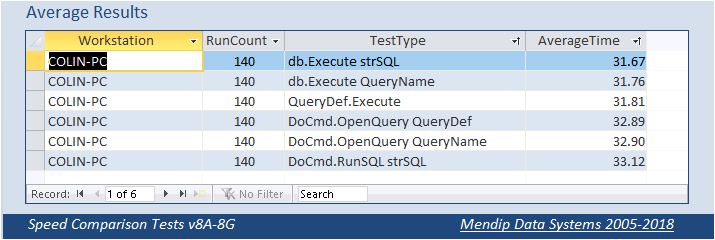
Notice that the order is reversed for the 3 tests using DoCmd compared to Execute
There is less than 5% variation between the 6 methods overall in these 140 tests on each.
Furthermore, there is less than 0.5% difference between the 3 execute methods
Of course, this isn’t scientific as each of the 7 versions are performing different actions.
However, the main trends from all the above tests are that:
1. Using Execute methods are almost always faster than using DoCmd. In certain cases up to 20% faster though usually much less than that
2. For simple queries, dbExecute strSQL is generally fastest and DoCmd.RunSQL strSQL is slowest
3. For more complex queries, executing a saved query is usually fastest as Access can optimise the query execution plan.
However, the variation between the different tests is often smaller.
4. For procedures involving a number of action queries, executing a SQL statement may once again be fastest though once again the differences are very small.
5. Executing query definitions appears to never be the fastest method in these tests
6. Executing queries based on SQL tables may be faster than doing the same queries on linked Access tables
Overall, however, in most cases, the differences aren’t that significant and other factors may be more important in determining the best method to use.
For example, if you prefer keeping all code in one place to allow an overview and easy editing, using SQL statements may be best. Conversely if you wish to keep as much as possible separate from VBA code, using saved queries works well
So 5000 loops * 10,000 records = 50,000,000 records appended
Whilst you can edit the value of the constant RC in the code, that won't alter the number of records appended because I didn't see the need to do so when I wrote this several years ago. In fact the code states: RC = 10000 'fixed for this test
If you want to append fewer records in each loop, you will either need to reduce the size of the source table accordingly or alter the code to only append the number specified by the set value RC
From memory (which may be faulty as this is 5 years old), choosing a larger or smaller number of records to append made little difference to the overall pattern of results. I chose the value of 10,000 for a number of reasons, one of which was to keep the test file to a reasonable size
In my 7 sets of test results for different types & combinations of query, saved queries were sometimes fastest but at other times using SQL was faster, Defining query defs was never fastest. However, in most cases, the 3 methods gave similar times.
I also compared DoCmd.RunSQL with db.Execute and there was a clear difference between those as you would expect
Below are my overall conclusions from the article back in 2018:
Clearly it isn’t possible to make sweeping conclusions from all of these tests.
As each of the 7 sets of tests were performed the same number of times, it might be interesting to view the overall average times by each method.
Notice that the order is reversed for the 3 tests using DoCmd compared to Execute
There is less than 5% variation between the 6 methods overall in these 140 tests on each.
Furthermore, there is less than 0.5% difference between the 3 execute methods
Of course, this isn’t scientific as each of the 7 versions are performing different actions.
However, the main trends from all the above tests are that:
1. Using Execute methods are almost always faster than using DoCmd. In certain cases up to 20% faster though usually much less than that
2. For simple queries, dbExecute strSQL is generally fastest and DoCmd.RunSQL strSQL is slowest
3. For more complex queries, executing a saved query is usually fastest as Access can optimise the query execution plan.
However, the variation between the different tests is often smaller.
4. For procedures involving a number of action queries, executing a SQL statement may once again be fastest though once again the differences are very small.
5. Executing query definitions appears to never be the fastest method in these tests
6. Executing queries based on SQL tables may be faster than doing the same queries on linked Access tables
Overall, however, in most cases, the differences aren’t that significant and other factors may be more important in determining the best method to use.
For example, if you prefer keeping all code in one place to allow an overview and easy editing, using SQL statements may be best. Conversely if you wish to keep as much as possible separate from VBA code, using saved queries works well
Religion and Politics on the main board? LOLFor example, if you prefer keeping all code in one place to allow an overview and easy editing, using SQL statements may be best. Conversely if you wish to keep as much as possible separate from VBA code, using saved queries works well
isladogs
Access MVP / VIP
- Local time
- Today, 22:18
- Joined
- Jan 14, 2017
- Messages
- 19,536
What??????Religion and Politics on the main board? LOL
You know, making a statement that provokes strong responses.What??????
It was an attempt at humor.
I guess from reading below that i am creating temp files everytime I query, and they never go away until compacted. Is there another way to do these queries without expanding my file size. If the answer to that is no, is there a way to automatically compact every few hours or so. I was unable to create a macro or code that compacts the db.

Gasman
Enthusiastic Amateur
- Local time
- Today, 22:18
- Joined
- Sep 21, 2011
- Messages
- 17,524
I *thought* the decompile was for code?All these points are well and good, but I have to say, I think a good maintenance routine is essential in ANY DB platform. Because of the frequent imports I have to do and use of temp tables, bloat is something I have come to accept and at least once a month, do a C&R on the BE. At the end of the year, I do a decompile and C&R on both the FE and BE and "push" them out.
Even if there were a way to do away with this, I wouldn't because the sense of well being I get is irreplaceable - not to mention gives the customer the impression that my services are needed.
Do you have code in the BE?
- Local time
- Today, 17:18
- Joined
- Feb 28, 2001
- Messages
- 30,899
I guess from reading below that i am creating temp files everytime I query, and they never go away until compacted. Is there another way to do these queries without expanding my file size. If the answer to that is no, is there a way to automatically compact every few hours or so. I was unable to create a macro or code that compacts the db.
Every query has some "baggage" that relates to making a list of affected records. In the simplest case, the "bloat" is minuscule and you can ignore it for a while. Frequent updates and/or deletes in large numbers will "thrash" your DB, though technically the deletes don't cause bloat right away. They just set you up for bloat at the next append operation since there is no guarantee you will re-use the deleted space immediately and in fact good odds that you WON'T use the deleted space.
Auto-compact CAN occur but is highly NOT recommended because of issues of data safety. For instance, running an auto-C&R from your target DB is tricky since at that moment you actually have that DB open. The nature of the C&R is that it makes copies of everything and then does some file trickery. BUT if you have that file open then that file trickery is not guaranteed to fly, depending on what it means for your DB to be open.
What IS recommended is that if you are going to run a C&R on your DB, you make a backup copy BEFORE you attempt anything else. Compact & Repair operations HAVE been known to fail. Having that preliminary backup copy can keep you going even after a catastrophic failure.
By the way, that was your first post. Welcome to the forums!
Back to the technicalities... How often you need to run C&R depends on bloat growth rate which in turn depends on table size and what percent of that table gets "churned" during regular operations. We can't tell you how often to C&R - you have to decide that for yourself based on disk sizing and the availability of down-time sessions to allow yourself to perform general DB maintenance. This in turn depends on whether you are the sole user or whether the DB is shared among many users. This kind of decision is not trivial because of the number of contributing factors.
Databases that are shared should run on SQL Server. There is a free version; we should all use it. KenHigg made an incredible version management program for keeping frontends current across the enterprise. At the chemical plant where we built an ERP, we used it for about a hundred users, many of them off-site on a VPN and remote desktop.
In that case, all the admin guy has to do is change the version number of the control DB file, and it automatically replaces them with the next loading of the DB. This method does not allow for any data to be stored in the FE. That's generally bad practice anyway.
In that case, all the admin guy has to do is change the version number of the control DB file, and it automatically replaces them with the next loading of the DB. This method does not allow for any data to be stored in the FE. That's generally bad practice anyway.
Similar threads
- Replies
- 14
- Views
- 611


- Replies
- 29
- Views
- 640
Users who are viewing this thread
Total: 1 (members: 0, guests: 1)