MS Access database runs slower on SSD than on Spinning disc (2 Viewers)

jeffreylewis

New member
Local time
Today, 07:41
Joined
Sep 17, 2020
Messages
28
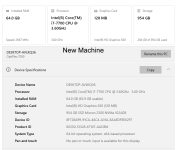
I have just bought a more modern computer Dell 7050 with 1 terrabyte SSD disk running Windows 10 split into "C" and "D" drives
It has Intel Core i7 @3.50 ghz and 64GB RAM

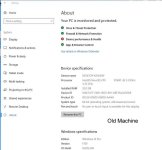
My 12 year old Dell Prescision had 0.5 terrabyte Spinning disk running Windows 10 split into "C" and "D" drives
32GB RAM and handled MS Access Forms very quickly

The new one is faster with things like Excel Spreadsheets or Word Docs, but is irritatingly slower with MS Access forms
Can any body explain why?

Regards Jeff
 
These are pro-forma questions, but we have to ask...

1. Same version of Access on both machines?
2. Same number of folders in the path between the root folder and the database folder?
3. Have you been "playing" with the Windows feature called "Affinity?"
 
Also check:
1. Your db is not in a OneDrive syncing folder
2. Whether your anti-virus is interfering
 
These are pro-forma questions, but we have to ask...

1. Same version of Access on both machines?
2. Same number of folders in the path between the root folder and the database folder?
3. Have you been "playing" with the Windows feature called "Affinity?"
These are pro-forma questions, but we have to ask...

1. Same version of Access on both machines?
2. Same number of folders in the path between the root folder and the database folder?
3. Have you been "playing" with the Windows feature called "Affinity?"
Thanks Same version
Same number of Folders
No Affinity
 
Use task manager to compare memory and cpu usage
 
It has Intel Core i7 @3.50 ghz and 64GB RAM

It occurs to me that the Core i7 has a separate model number that you didn't tell us. In the past, I have had a Dell XPS 3800 i7-2600, which was a bangin' machine for its time - 15 years ago give or take. I am now running another 'puter with an i7-14700 - and that separate model number makes a HUGE difference because of thread speed differences. There is also the matter of your video card, which you have of necessity changed when you upgraded your machine. Screen painting depends on it.

However, it is interesting that you suggest speed improvements for Word and Excel but degradation for Access. The major difference between the three has to do with internal locking mechanisms. Both Word and Excel use whole-file locks whereas Access does not. If the file in question is hosted by your new machine, then it isn't network lock traffic that is slowing you down (because in that case the network isn't involved.)

When you open your Access app file, can you open a second window to verify that the lock file exists? What version of Access is this?

Finally, we didn't see an answer regarding whether you have a DB file in a OneDrive folder that is actively set up for real-time syncing. Your 12-year-old system very likely didn't have a OneDrive synch setup because it was only about 5 years old 12 years ago and hadn't accumulated much traction yet. But on a new system, I know for a fact that you get bombarded (for a while) to join the OneDrive bandwagon. I still have to now and then slap it around to shut it up.
 
Wow that's a comprhensive answer.
There are lock files for both the front and back end.
It's all on the same machine.
Access 2007 I don't want to upgrade as it integrates with Ms Office Oulook
I am not in the OneDrive.
Windows 10 Pro

Thanks for the help
Regards
JEFF
 

Attachments

  • DELL ABOUT NEW 7050.png
    DELL ABOUT NEW 7050.png
    114.7 KB · Views: 160
  • DELL ABOUT OLD.jpg
    DELL ABOUT OLD.jpg
    49.1 KB · Views: 175
  • DELL CPU New 7050.png
    DELL CPU New 7050.png
    110.6 KB · Views: 173
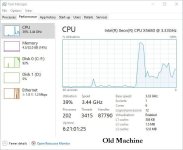
  • Old Machine CPU.jpg
    Old Machine CPU.jpg
    55.7 KB · Views: 171
Is your SSD running at 100% active time at all?
1748535271165.png
 
That looks good, certainly a lot better than mine. However I would expect to see it active even a little, when you have those spikes.
 
You may not have control over this. MS is insistent on "helping" you with truly stupid things. that cater to rank novices.

1. you didn't answer regarding your virus scanner.
2. obscure but if your new computer doesn't have a default printer defined, that can slow down Access because it checks with the printer for some formatting information.
Default printer is set.
Virus protection is TotalAV but ist was slow before I put that on the computer
 
Add a new standard module for testing and paste in the following function:
Code:
Function ReportPrinters()

  Dim rpt As Object
 
  For Each rpt In CurrentProject.AllReports
    DoCmd.OpenReport rpt.Name, acViewDesign
    Debug.Print rpt.Name, Reports(rpt.Name).Printer.DeviceName
    DoCmd.Close acReport, rpt.Name
  Next rpt
  ReportPrinters = Err = 0
 
End Function

Then, in the Immediate Window (Ctrl+G), type:
Code:
?ReportPrinters
and hit return.

Does it list any printers that are not accessible to the new computer?
 

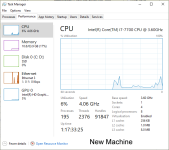
Memory is at 14%, therefore you are NOWHERE near saturation of memory AND at that level, I guarantee you aren't swapping or paging anything. I.e. dynamic memory is not actively load-balancing. In fact, with that small memory load, you probably have only Access itself, an anti-virus, and Windows Task Manager active.

CPU load is at 6%, so you are nowhere near saturating THAT, though it might help to know the CPU load in greater detail. Did you tell us WHICH i7 processor you have? The i7 line of chips has been multi-CPU for years now, but later i7s have split-speed CPUs. That's why I earlier asked if you had been playing around with CPU Affinity. But, you said NO on that. It is still worth knowing what i7 chip you have.

The disk is showing no particular load, zero read usage, and fast write-back speed, though it is taking a hit every 5 seconds. That could be ordinary logging, though there IS a possible resource hog to consider. Does your system have Copilot active? If so,, do you know if you have the RECALL feature active? That might cause a regular periodic load, though the timing doesn't seem right. (RECALL isn't a once-per-5-seconds feature.)

The GPU is not doing much, though when Access is involved, advanced graphics card loads are not expected anyway. Unless you have programmed something using complex graphics API code - and I'm betting against that. You would know if you had done such a thing.

You have a slight level of activity on the Ethernet connection, but since you explained that the app is all on the same machine, the network activity is something probably unrelated to Access. It is probably very low network action, scaled precisely BECAUSE it is so low.

That covers all of the system issues that are the first places to look for bottlenecks. When doing system load analysis, you always look for network issues, then disk problems, then memory problems, then CPU/GPU problems (in that order), but you've got nothing that would even give me a case of hiccups as far as system loads go.

This means that we need to decide what is going on with the application when it is running, 'cause your problem ain't due to a bum system. You said earlier that reports were reasonably fast, but forms were troublesome. What are the forms doing?

Another question, still related to forms: What is the nature of the forms' .RecordSource properties? Do you directly reference a table? Do you have a query that drives the form? Do you have a literal SQL query as a .RecordSource? Are you using a lot of multi-value fields (MVFs)? Is there a very large table involved? Is there a JOIN involved? Do you have a lot of combo or list boxes active?

At the moment, I don't see anything that would trigger an obvious slowdown, though a problem within Access or your app could surely go down that path. It may sound like a negative result, but look at it this way. We still might not know what IS wrong, but we know it isn't a Windows or system hardware problem per se. It has to be in the version of Access, the libraries, or something being done in the forms. So there is at least some elimination of places to look.

 

Users who are viewing this thread

Back
Top Bottom