Yes. Back end and Front end. BE on main workstation running Windows 11. It's also providing file sharing for another folder as well.
One thing that does confuse me though. A previous database person made different back end versions. 3.4, 3.4 and 3.8. I'm not sure why everyone is not opening up 3.8. I'm not sure if running different front end "editions" will cause issues or not.
Yes. Back end and Front end. BE on main workstation running Windows 11. It's also providing file sharing for another folder as well.
One thing that does confuse me though. A previous database person made different back end versions. 3.4, 3.4 and 3.8. I'm not sure why everyone is not opening up 3.8. I'm not sure if running different front end "editions" will cause issues or not.
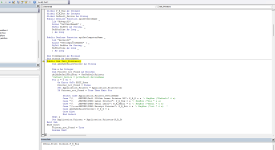
In the screenshot, it appears that the printer is being set by the line
Code:
Set Application.Printer = Application.Printers(Globals.P_R_Big)
This means that someone has created an object called "Globals" and it has a member or property called P_R_Big, which I would assume means "it's a big printer" OR that it prints on big labels or on big paper. I'm betting that Globals.P_R_Big will resolve to a name.
You can open the VB window (actually you already HAVE it open in the xRDTeAs0Ca.png image). You can do a search for "Globals" - click the "Binoculars" icon - and check the "entire project" option to find all the places where "Globals" is referenced. One or more of those places will show you something about Globals.P_R_Big, and that is where you will find the printer names. I also saw a reference to Globals.P_R_Small, which I'm betting is another printer. This kind of searching is tedious but it is how you find out what somebody else did.
Or you can simply open the Immediate Window by clicking "View" from the VBA menu bar and then selecting "Immediate Window" and type
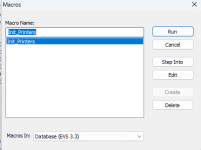
So I typed Debug.Print Globals.P_R_Big into the immediate window box. I went to the top left and hit the run macro button. It brought the second Init_Printers Macro Name. I click Step Into and it brought me to the Yellow colored portion.
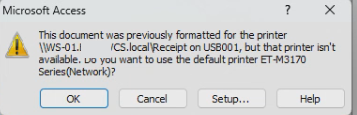
There appears to be an old share that hasn't existed for a long time. What I don't understand is why the small label prints. The receipt and large label bring the 3rd picture up. I can choose specific printer but it's not formatted correctly.
Well, at least you now know where the printer names are stored. So if you can connect manually using the new machines, you would be able to find new printer paths and edit your Init_Printers subroutine with the new names. The formatting issue is going to be a bit trickier. That could lead anywhere, but if specific reports are involved, you might be able to see something in the report's event code. Here, you face a bit of searching. To the good, reports USUALLY have less code than forms. You might also want to look at the various properties of each report section. You can select the properties of the whole report if you click in the little area at the upper left of the report's design window. Then any properties are for the report as a whole. That is where to look, but I can't tell you what to look for, because basically your imagination is the limit in that case.
Well, at least you now know where the printer names are stored. So if you can connect manually using the new machines, you would be able to find new printer paths and edit your Init_Printers subroutine with the new names. The formatting issue is going to be a bit trickier. That could lead anywhere, but if specific reports are involved, you might be able to see something in the report's event code. Here, you face a bit of searching. To the good, reports USUALLY have less code than forms. You might also want to look at the various properties of each report section. You can select the properties of the whole report if you click in the little area at the upper left of the report's design window. Then any properties are for the report as a whole. That is where to look, but I can't tell you what to look for, because basically your imagination is the limit in that case.
I appreciate all your help but I may have to throw in the towel on this one and get a consultant. I just don't have another 20-30 hours to learn Access to change a printer.
I have another question. The FE files are all on the desktop. I read somewhere that they should be on the root of C:. Is that correct? Right now the FE files are on the desktop.
The FE files should be in a Trusted Location on each client's/user's PC. That trusted location can vary from one system to the next. I sincerely doubt that your management or IT security staff would want any app files in the root directory of ANY drive. Third-party apps will often make their own folders on installation. Generally in a Windows system, the most likely path would start with C:\Users\username\x\ where x = My Documents or some designated folder set aside for the purpose AND declared to be a trusted location.
Anywhere in a local drive is Ok, just be consistent. One of my clients uses a folder on the C drive called databases, I tend to use a folder in the users appdata folder which is typically hidden
I have another question. The FE files are all on the desktop. I read somewhere that they should be on the root of C:. Is that correct? Right now the FE files are on the desktop.
I have a habit of putting mine in the user's %appdata% folder, then programmatically creating (if not already exist) a desktop shortcut with a custom icon. This overall scheme gives a professional feel to the situation.
Or the desktop shortcut/icon may point to a VBScript file on the network that does the above.
Either way it's a lot better than putting the file directly where the user is looking at it - and they can do bad things (for unknown but real reasons) like making copies, changing the name, putting somewhere else, etc. etc.
No matter whose method/technique you follow, IMHO the whole "installation/opening/copying/versioning" scheme is a BIG DEAL.
It gives professionalism to the user's viewpoint, it generates respect for your app by the users, it controls FE bloat, it synchronizes versions seamlessly, it makes your life easy.