
Solved How to cause a checkbox to become enabled when another checkbox is checked?

Sampoline

Member
Local time
Today, 20:50
Joined
Oct 19, 2020
Messages
161
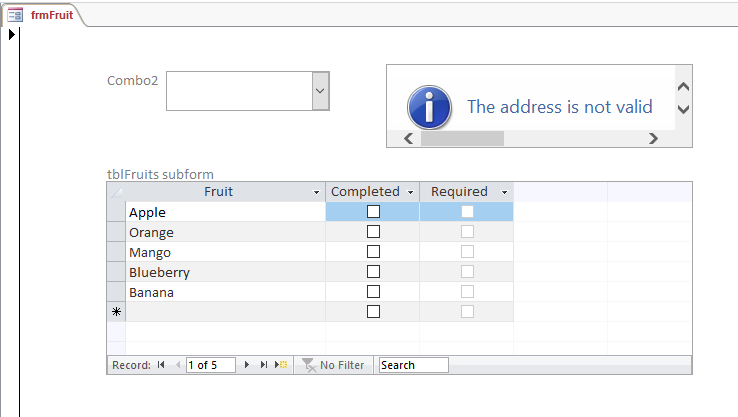
I have a list of items that have a range of checkboxes to be checked.
1608599927213.png


I have two specific checkboxes; 'Required' and 'Completed'. I need the 'Required' checkbox to enable only once the Completed checkbox has been ticked/checked.

That is, I need one of the checkboxes to stay disabled until another specific checkbox is checked true.

The list and checkboxes are in a subform. I set the Enabled property of the 'Required' checkboxes to "No". And then I tried using an After_Update event in 'Completed' checkbox to do this:

Code:
Private Sub Completed_AfterUpdate()

If Me.chckbxCompleted = True Then
    Me.chckbxRequired.Enabled = True
Else
    Me.chckbxRequired.Enabled = False
End If

End Sub

But this didn't work. They didn't enable once I checked the 'Completed' checkbox.

Any suggestions?
 
use the Textboxname, not the Fieldname
Code:
Private Sub chckbxCompleted_BeforeUpdate(Cancel As Integer)
Me.chckbxRequired.Enabled = Me.chckbxCompleted
End Sub
 
use the Textboxname, not the Fieldname
Code:
Private Sub chckbxCompleted_BeforeUpdate(Cancel As Integer)
Me.chckbxRequired.Enabled = Me.chckbxCompleted
End Sub
Is there a way to do it for each item. So in my example it was 'Fruit'.

So when Apple has no tick on the 'Completed' checkbox, then the 'Required' checkbox stays disabled. But if it is ticked, then it will enable.

But this should pertain to only that particular fruit. So the next line is Orange right? I want that to be independent. And so on and so forth. If that makes sense?

Because at the moment, if I tick the checkbox for one "Completed" item, then all the 'Required' checkboxes becomes enabled. I just want that one fruit/item to enable.

Also I didn't quite understand what was meant by textboxname and fieldname? If you can clarify that for me thanks.
 
Code won't work with ContinuousForms as all records will all be affected. You would have to use ConditionalFormatting.

However Checkboxes don't support ConditionalFormatting so need to be simulated with a textbox.
 
Code won't work with ContinuousForms as all records will all be affected. You would have to use ConditionalFormatting.

However Checkboxes don't support ConditionalFormatting so need to be simulated with a textbox.
My form is a single form, will that be affected too? And how do I go about simulating the conditionalformatting with a textbox.. sorry I'm not too familiar with that process.
 
maybe change your Yes/No fields to Short Text, so you can use the Conditional Formatting.
 

Attachments

The subform is Continuous.
Simulating a checkbox with a textbox is quite involved.

Have a look at this thread.

BTW I never got around to completing the Class version I mentioned in that thread.
 
why not just add a code to the On Current Event of the Required Textbox.
see Fruit2 form.
 

Attachments

you are going to have to change the subform from DS view to Continuous. Then you can use conditional formatting to hide/show the second control which might be more visually appealing.
ConditionalFormatting can be used to Enable or Disable a textbox but I don't know any way to change the visibility with ConditionalFormatting in the versions of Access I have used. It isn't available for checkboxes which is why I suggested the simulated checkbox using a textbox control.

ConditionalFormatting works in a datasheet view the same as it does in ContinuousForms.
 
why not just add a code to the On Current Event of the Required Textbox.
see Fruit2 form.
Hi Arnel,

Thanks for the suggestion and attached form as example. Using the GotFocus event does work for me.

Cheers for that.
 

Users who are viewing this thread

Back
Top Bottom