Moving items between listboxes

  • Thread starter Thread starter Deleted member 73419
  • Start date Start date
D

Deleted member 73419

Guest
Hi,

I'm struggling with moving items between listboxes on a form.

Currently, I have this arrangement:
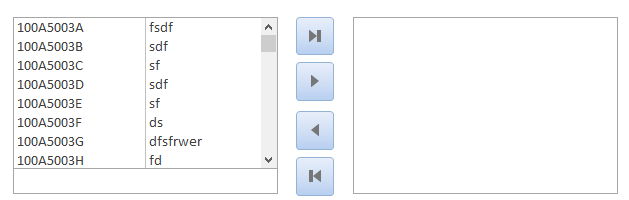
1646601285784.png


There are two listboxes, lstLeft & lstRight, a textbox under lstLeft called txtSearch and four buttons, cmdMoveAllRight, cmdMoveRight, cmdMoveLeft and cmdMoveAllLeft, from top to bottom.

lstLeft contains a lot of records (approx 70k) from a table so I populate it with this code when the form opens:
Code:
    lstLeft.RowSource = "SELECT Part, Desc FROM Parts ORDER BY Part ASC"
    lstLeft.ColumnCount = 2
    lstLeft.ColumnWidths = ";;60"

The end goal is to have the buttons move data between listboxes and the search textbox to limit the contents of lstLeft to a manageable range dynamically as you type.

The trouble I'm having is how do you move data between the listboxes? For example when I want to move from lstLeft to lstRight - if I were to iterate through the selected items in lstLeft and then add them to lstRight, I need Row Source Type of lstRight to be set to Value List but I cannot use this method to move from lstRight to lstLeft as the Row Source Type for lstLeft is Table/Query in order to populate from a table when the form opens.
I also need to be able to remove the items I've just moved from one listbox as I'm adding them to the other. As far as I know you cannot remove items from a listbox where the Row Source Type is set to Table/Query...

Is there an easy way to do this?

Thanks
 
Just a thought... Check out the similar threads list below.

Sent from phone...
 
Is there an easy way to do this?
Yes, it is possible, but it is better to show it on your specific example.

Can you post a copy of your application with just the form (with subforms) and required tables/queries.
Just a few (fictitious) records to understand.

More:
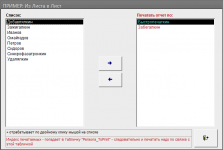
I have an example - but old and in Russian ... VBA is VBA in any language! Anyway see attachment below.
 

Attachments

I have a class module, that utilizes a subform. So it is completely reuseable in any database with very limited code. With one line of code you can implement it.
 

Attachments

lstLeft contains a lot of records (approx 70k) from a table so I populate it with this code when the form opens:
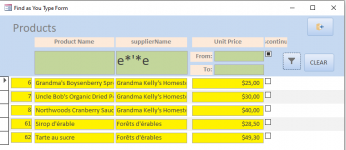
I would prefer to use a ribbon form with filtering by a fragment of the name field and a selection checkbox
 
The end goal is to have the buttons move data between listboxes and the search textbox to limit the contents of lstLeft to a manageable range dynamically as you type.
at the same time, the form can show not only the article of the product, but also the name, unit of measurement, ... for filtering and by them

when you set the filter =selected, you can print the selection for a comfortable check, then go back to the selection for correction, and not select everything again

and of course, approximately how many positions will be in the selected
 
Use @MajP 's code - it works and is simple to implement.
Don't bother re-inventing the wheel.
 
What is a ribbon form?
tape form (analogous to tabular, continuous) - records with a filter strictly above the data fields - easy to select and view
 

Attachments

  • u_find0305.png
    u_find0305.png
    20.3 KB · Views: 421
Last edited:
lstLeft contains a lot of records (approx 70k) from a table so I populate it with this code when the form opens:
Does your listbox return all 70K records?

I may be wrong but I think the limit is around 65K rows and even less for a value list which is limited by the max length of a string.

Edit: A quick test shows 65535 as a limit.
 
Last edited:
As others have mentioned this might night be a good interface for large lists, but this is a very good interface for other things.
If this goal was to pick many specific values from a very large list and persist them.

The trouble I'm having is how do you move data between the listboxes? For example when I want to move from lstLeft to lstRight - if I were to iterate through the selected items in lstLeft and then add them to lstRight, I need Row Source Type of lstRight to be set to Value List but I cannot use this method to move from lstRight to lstLeft as the Row Source Type for lstLeft is Table/Query in order to populate from a table when the form opens.
There is two ways to do this. I take the query and when the form opens I loop the rowsource of the query and basically turn the query into a value list. This allows me to take a large query of records and populate as a value list.

Code:
Private Sub LoadFrom()
  Dim rs As DAO.Recordset
  Dim strAdd As String
  Dim fld As DAO.Field
  On Error GoTo errlbl
  ClearList Me.ListFrom
  If Me.From_SQL = "" Then Exit Sub
  Set rs = CurrentDb.OpenRecordset(Me.From_SQL)
   Do While Not rs.EOF
   strAdd = ""
   For Each fld In rs.Fields
     If strAdd = "" Then
       strAdd = rs.Fields(fld.Name).Value
     Else
       strAdd = strAdd & ";" & rs.Fields(fld.Name).Value
     End If
   Next fld
   Me.ListFrom.AddItem strAdd
   rs.MoveNext
  Loop
  If rs.RecordCount > 0 Then Me.ListFrom.Selected(0) = True
  DisableEnableButtons
  Exit Sub
errlbl:
  MsgBox Err.Number & ": " & Err.Description & " in load From"
End Sub

As far as I know you cannot remove items from a listbox where the Row Source Type is set to Table/Query.
The second method is to maintain a list of Items selected. This requires a lot less code, but a few moving parts.
Each time you select a record you from an insert query an add that ID to the selected list, and if you un select it you run a delete query to remove it. Then the queries are basically for each list
"Select productID, ProductName from tblProducts Where ProductID Not in (Select productID from tblSelected)"
then from list
"Select productID, ProductName from tblProducts where in (Select productID from tblSelected)"

You can modify those to use joins instead, but you get the idea.
I think if you want to make the list FAYT first then move between lists, it will be a lot easier using this latter approach.
 
Last edited:
What is a ribbon form?
the example shows the selection by
  • 1- by the name of the product (you can do it by a fragment of the name), if there is a category or units of measurement, then by them
  • 2- by the name of the supplier (you can do it by fragment)
  • 3- by price interval

if the checkbox is 3-position, then you can
  • 1- show only selected
  • 2-show unselected
  • 3- show all

you can make several options at once if you use a numeric or text field instead of a checkbox.

you can print out a sample for analysis , so that after studying it , you can return for correction

the implementation depends on the type of database (local or network),
  • 1- for a local check box can be placed directly in the main table
  • 2- for the network, the auxiliary table must be located together with the forms
 
I just ran some tests on my Picklist class and found that it fails after about 5000 rows in the source list. It appears the issue is due to the limitaion on length of strings which are created in the process of manipulating the source listbox.

My class takes the source listbox and creates a dictionary object for each list, as well as altering the properties of each listbox. The .Add and .Remove methods of the dictionary work well when passing values between the 2 lists.
 

Attachments

Many thanks guys :)

I'll take a look through these examples and see which ones I can best utilize.
 
Are the listboxes bound to tables/queries or to value lists.
Either way the OP has an issue. A listbox is limited to 65535 rows. The OP stated they had about 70,000 rows. They all wont fit.
The rowsource of a value list is even more limited in that it is a string and is limited to something like 64,000 characters.
I'm guessing his example is for a value list.
My class takes a listbox which is bound to a table and copies all its properties and settings to the other listbox. It then parses out the rowsource sql to create a modified rowsource sql . The dictionaries contain the primary keys which are used in the modified where clause using an "IN" clause - ie, "where PrimaryKey in (. . . )" So the issue I had in the test was the rowsource Sql exceeded the 64,000 character limit. Personally I would never have 70,000 rows in a listbox so it's not really an issue I'd worry about.

The upside is you only need to set up one standard listbox and it's 2 lines of code to utilize the class.
 
Last edited:
The listbox is filled using a select statement in the RowSource. I don't like it that there are so many rows but that is the point of the textbox is that I will be able to filter out unwanted entries thus greatly reducing the number or rows ;)
 
I added a demo of a Large From to List with about 10K available. But no issue doing any size. As set up I would think no problem handling a several 100k you would need to slightly modify the code once you get into the millions so that you never go over the 60k limit. It is a combination of a FAYT and a From to list. So you can filter as you like on the left side and select your records. Then you can search as needed on something else. In this example the left list starts blank then returns all words with "A" then "A" then "AAR".

If you list gets into the millions then you will have to be more restrictive. You will have to force the user to provide a minimum amount of letters to search. Here it starts after just one letter.


large Tofrom.jpg


There is really almost no new code to make this work. I had to hard wire the search and the update and delete queries.
This is pretty much the whole code that needs to be touched, everything else is in the class module. You initialize the class and code the delete and update queries.

Code:
Public WithEvents FormFromTo As Form_FromToListLarge
Private Sub Form_Load()
  Set FormFromTo = Me.subform_FromToList.Form
  Dim FromSQL As String
  Dim ToSQL As String
  FromSQL = "SELECT tbldata.PersonID, Full_Name FROM tblData where True = false"
  ToSQL = "SELECT tbldata.PersonID, Full_Name FROM tblData inner JOIN tblSelectedData ON tblData.PersonID = tblSelectedData.PersonID ORDER BY tblData.Full_Name"
  FormFromTo.FTL_InitializeFromTo FromSQL, ToSQL, "People Not Selected", "People Selected", True
End Sub

Private Sub FormFromTo_ItemFromAdded(Item As Variant)
  Dim strSql As String
  strSql = "Delete * from tblSelectedData where PersonID = " & Item
  CurrentDb.Execute strSql
  FormFromTo.ListFrom.Requery
  FormFromTo.ListTo.Requery
End Sub

Private Sub FormFromTo_ItemToAdded(Item As Variant)
  Dim strSql As String
  strSql = "Insert into tblSelectedData (PersonID) VALUES (" & Item & ")"
  CurrentDb.Execute strSql
  FormFromTo.ListTo.Requery
  FormFromTo.ListFrom.Requery
End Sub
 

Attachments

WHAT are your listboxes used for? Why do they start out totally unfiltered?
The list boxes are used to to select items. They are unfiltered as the user has no idea what they want to select until they've found what they're looking for.
If they were filtered initially, there is every chance what the user is looking for would not be in the list...
 
The list boxes are used to to select items. They are unfiltered as the user has no idea what they want to select until they've found what they're looking for.
If they were filtered initially, there is every chance what the user is looking for would not be in the list.
That does not make any logical sense. Assume you have a very large list, having all the records visible to start is of no value. You cannot scroll 70k, 10k, 5k or probably even 1K. The user might not know exactly what they are looking for, but for sure they at least have to have an idea of what it could look like.

In my case I know it is "Aaron" something with an "L". But I do not know if Aaron is spelled Aaron, Ahren, Aaron. I think it is "Le" something. So I am not scrolling 10k records to see if I can find something. I start with no records returned. I will then type "Aar" and that should get the list to something manageable. I can then try "Ahr" if I do not find a solution. If I still cannot find it I am searching "Le" and seeing if that works.

In my case I return records after a single letter is applied. If it was a really big list I would require the user to provide at least a couple of letters. My phonebook starts returning records when you enter the "H".

If this was a huge list of names, of course the search would be even more restrictive. I do an "In" string search but would have to change to a "start with" search. Also the search would not occur on each keystroke. You would type a minimum string and then hit the search button.
 

Users who are viewing this thread

Back
Top Bottom