Can Grow / Can Shrink not working (2 Viewers)

icantprint

New member
Local time
Today, 07:31
Joined
Nov 12, 2024
Messages
11
I hope I'm not asking another stupid question, but I've been playing with this for days, even looked for a VBA solution, and coming up with nothing. I've attached my design view details and the result of the print preview. These are all text boxes with no labels. Not everyone has a "name_2" or a "mailing_2" so I'd like those suppressed in the report when blank.

I've set all these text boxes to Can Grow and Can Shrink, and also set the detail properties to the same. As you can see, I still have blank lines where there shouldn't be any. I tried using "=Iif(Trim(nz([mailing2],""))="","",[mailing2])" but I'm pretty sure this isn't the proper case for it.

Probably another issue, but I'd like the city, state and zip fields to appear more naturally, but that's probably another question.

I appreciate the help again!
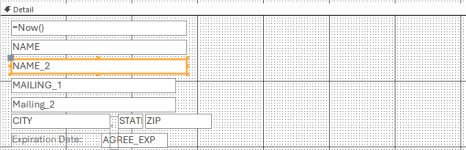
 

Attachments

  • address-design.png
    address-design.png
    11.3 KB · Views: 233
  • address-print-preview.png
    address-print-preview.png
    8.7 KB · Views: 219
Suspect the "grey" space between controls is adding to the space seen in print preview - compress the text box controls so no vertical spaces between them and check print preview again.
 
do you have any controls to the right?
 
The Can Shrink would only work with Null. Your expression is changing Null to a zero length string which goes against your desired results. You might want to make all possible Null text boxes to a height of 0.04" and set the section to can shrink.
 
Suspect the "grey" space between controls is adding to the space seen in print preview - compress the text box controls so no vertical spaces between them and check print preview again.
That makes no difference at all. I originally had them without spaces, then after learning having them touching/overlapping could affect the grow/shrink. I just put them back, and it's the same.
 
you do not need to add IIF() to your report.
select all your textbox and set it's CanGrow and CanShrink property to Yes.
now adjust the height of Mailing2 textbox to 0.
adjust the remaing textboxes after Mailing2 textbox so that
the space between them are the same (uniform).

test your report.
 
Leaving any horizontal space between controls will result in a double space when one is hidden
 
you can use a single control that concatenates all the address fields and so the one control contains all the lines of the address. You need to make use of both the & and + concatenation operators to ensure that null values disappear. Also, be aware that unless you set the Allow Zero Length Strings property for the column on the table design, the field won't necessarily be null and therefore would never shrink away anyway because a ZLS is "something" whereas Null is "nothing" in this case and "something" persists rather than being shrunk away.
next step: See above re Pat's suggestion re nulls and ZLS, / and post #6
 
Were I doing this, I would create your Mailing address in the query that drives your report rather than trying to mess about with the controls. Something like

AddyBlock: [CustName_1] & IIF( CustName_2 = "", "", Chr(13) & Chr(10) & CustName_2) & Chr(13) & Chr(10) & Mailing_1 & IIF( Mailing_2 = "", "", Chr(13) & Chr(10) & Mailing_2) & Chr(13) & Chr(10) & [City] & ", " & [State] & " " & [ZIP]

This would return

Name
Mailing
City, State ZIP

or

Name
Name 2
Mailing
Mailing 2
City, State ZIP

as needed. You are just building this up as you go. Chr(13) & Chr(10) adds the return between lines.

First I'd also sit down and work out better naming conventions for your fields though.

You may also be interested in using expressions in Access
 

Users who are viewing this thread

Back
Top Bottom